QueueFlow Help Center
Everything you need to set up your queue, run your counters, and get the most out of QueueFlow.
1. Getting started
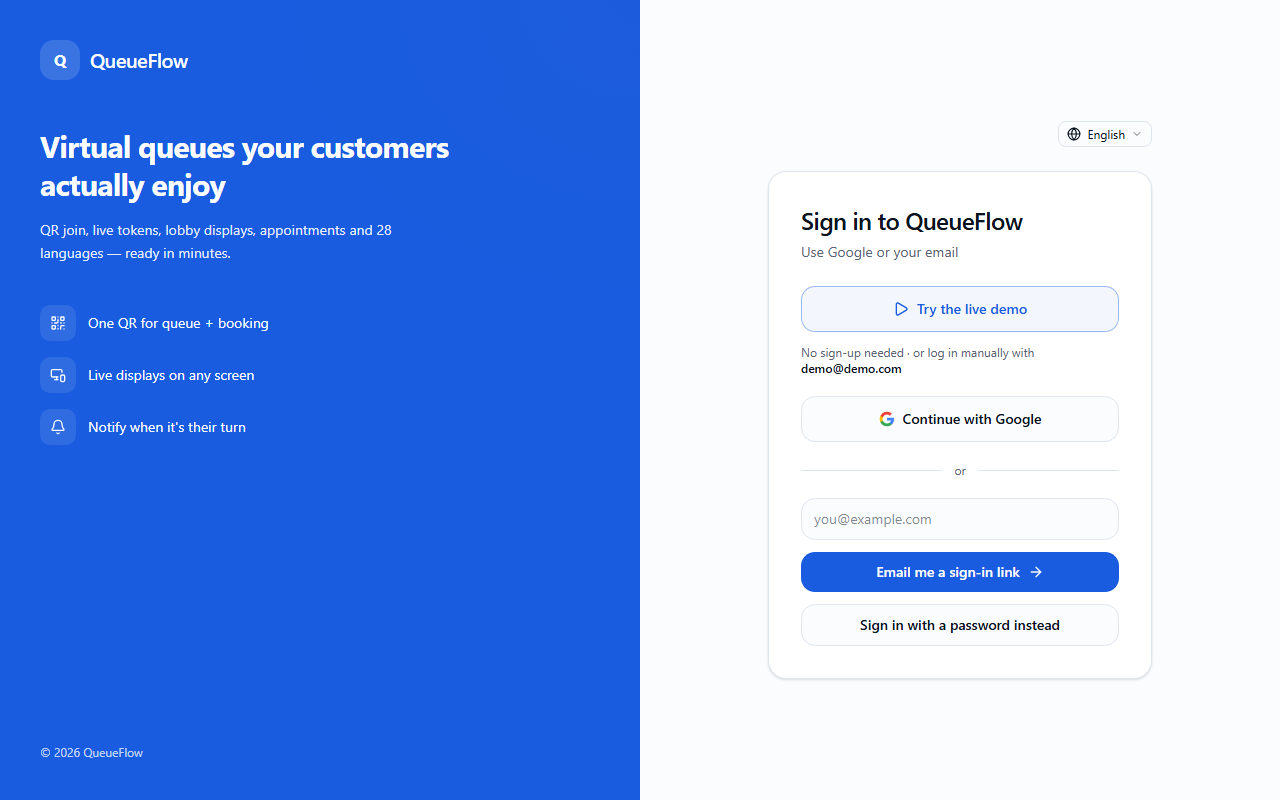
Create your account
Sign up with your email and business name. Every new account starts with a free 15-day trial of the Basic plan — no credit card required.
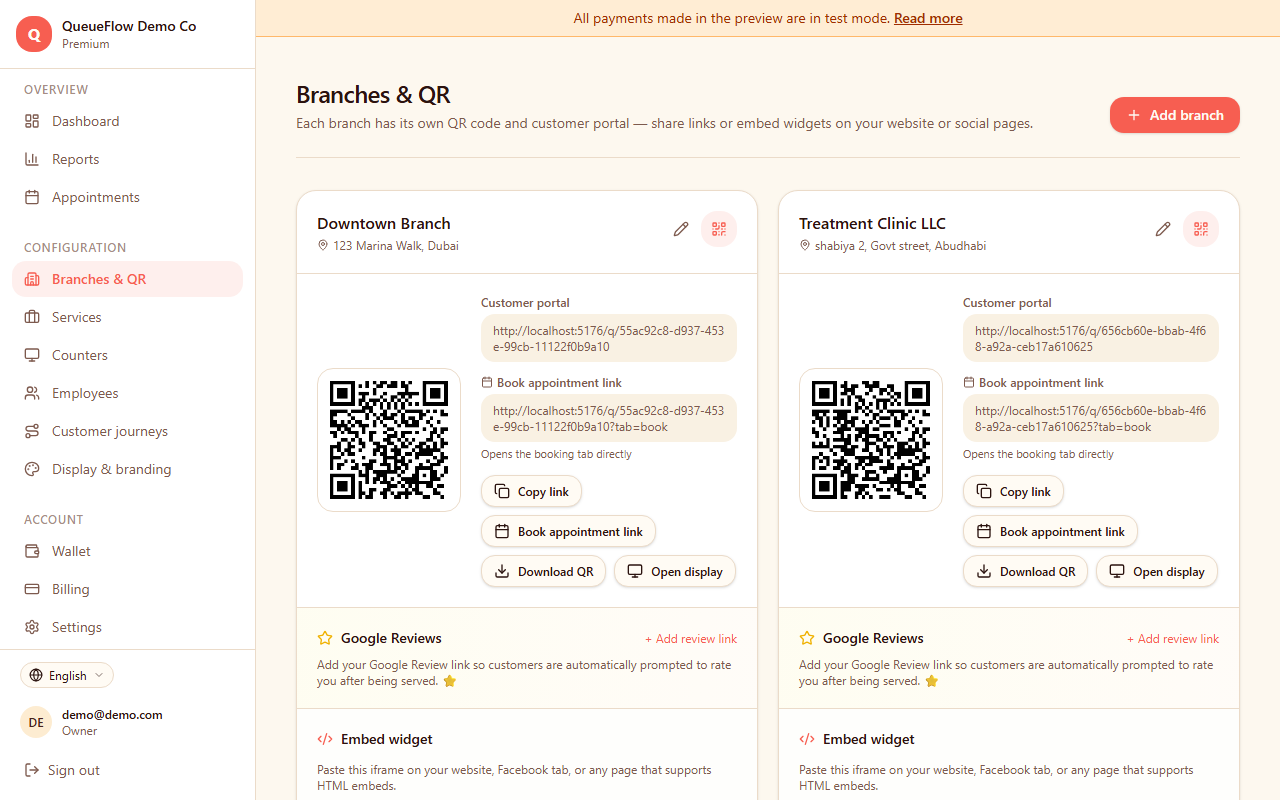
Add your first branch
Go to Branches and create a branch for your location (e.g. "Downtown Clinic"). Each branch gets its own queue, QR code and live display.
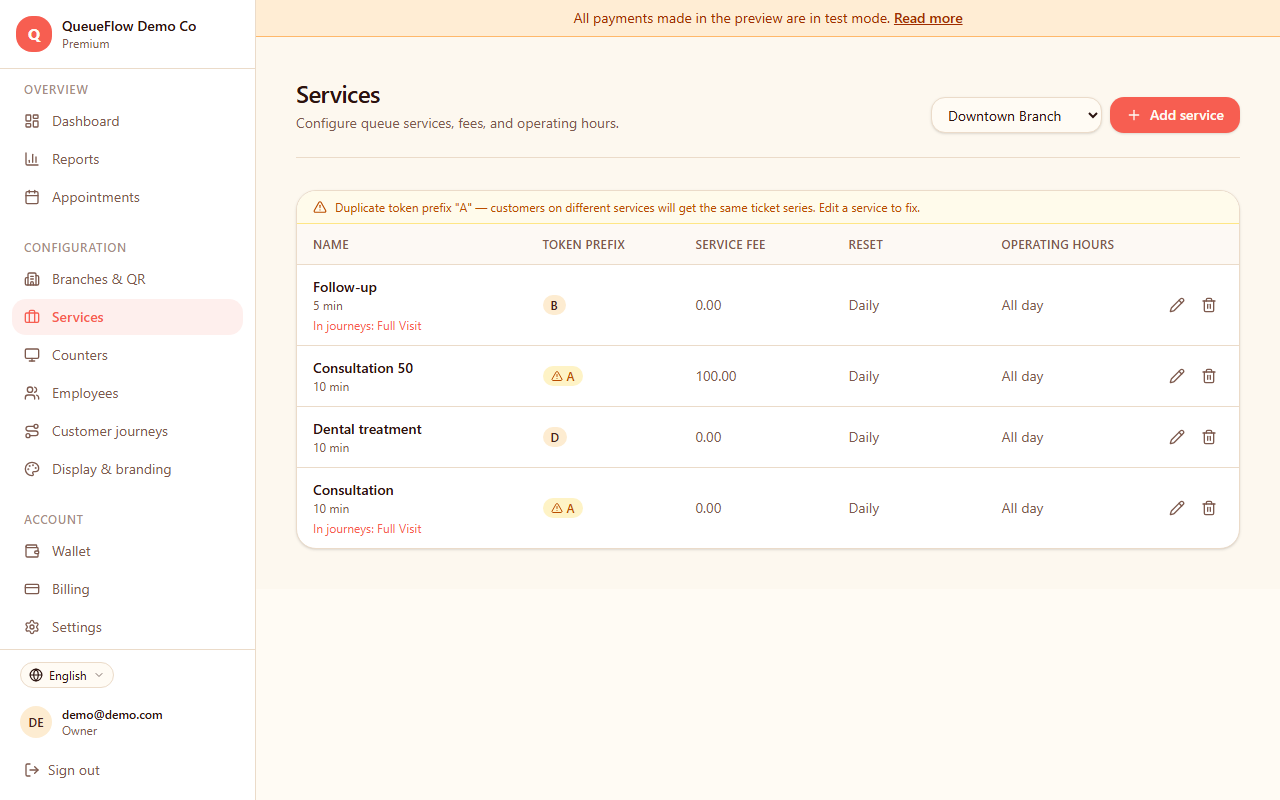
Set up services and counters
Under Services, add the services your customers need (e.g. "Consultation", "Billing"). Then go to Counters and create one counter per service desk, linking it to the relevant services.
2. Let customers join the queue
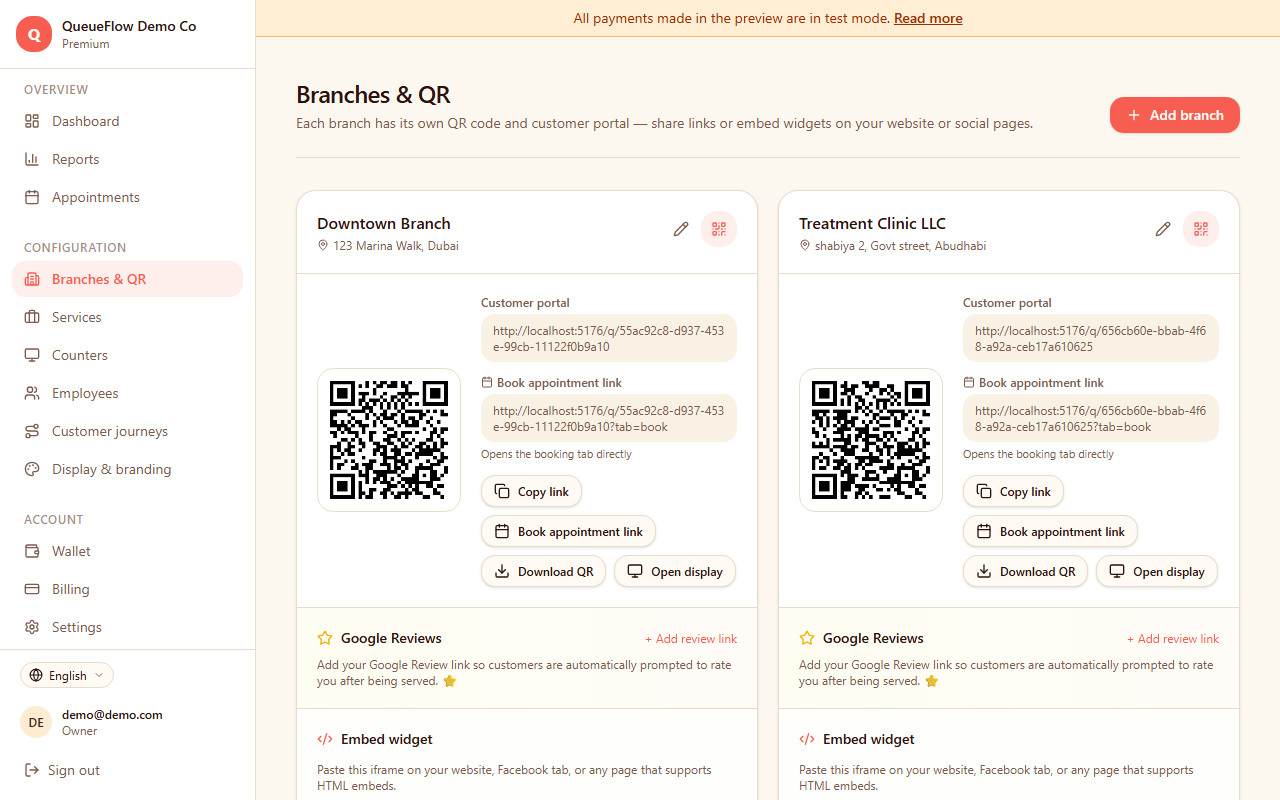
Share your branch QR code
Each branch has a unique QR code, available from the Branches page. Print it and place it at your entrance, or display it on a screen — customers scan it with their phone camera, no app download needed.
Customer joins instantly
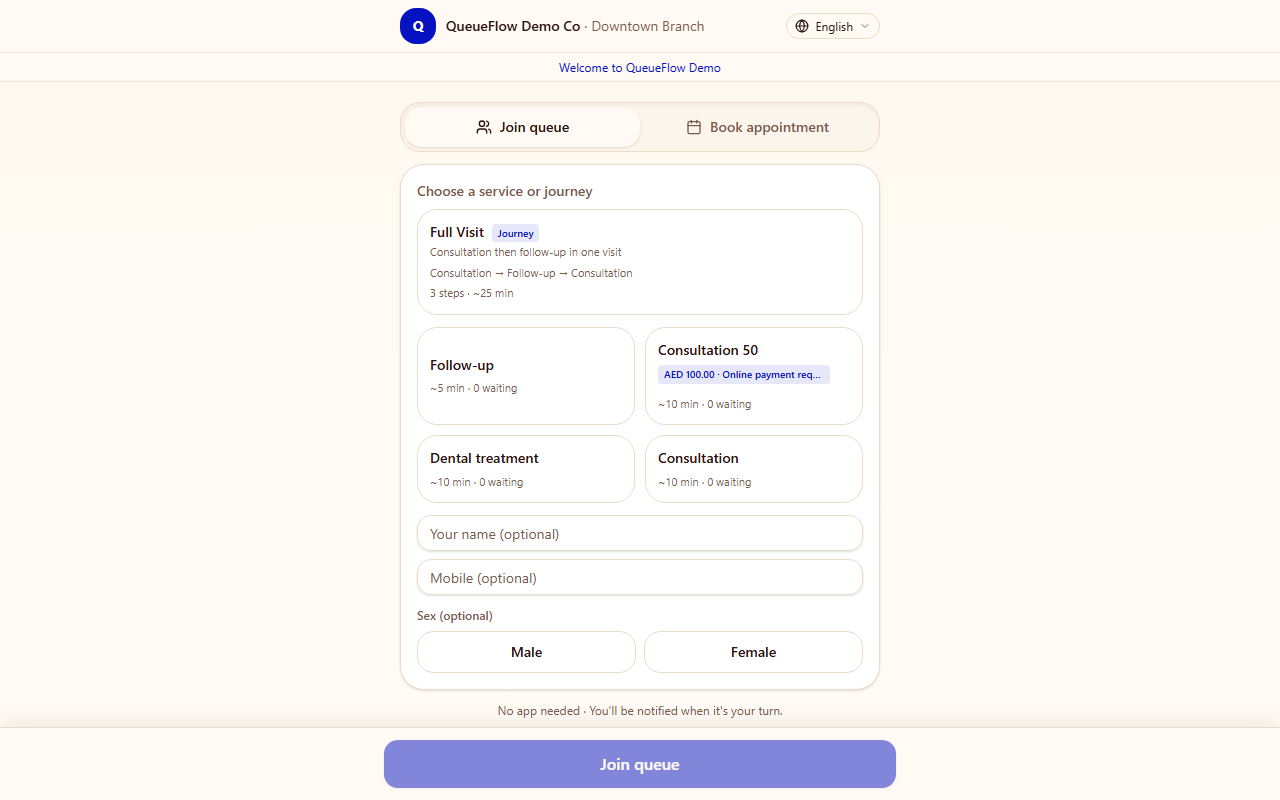
Scanning the QR opens a simple web page where the customer picks a service (or journey) and taps Join. They instantly receive a token number and can track their position from their own phone.
3. Run the counter screen
Open your counter
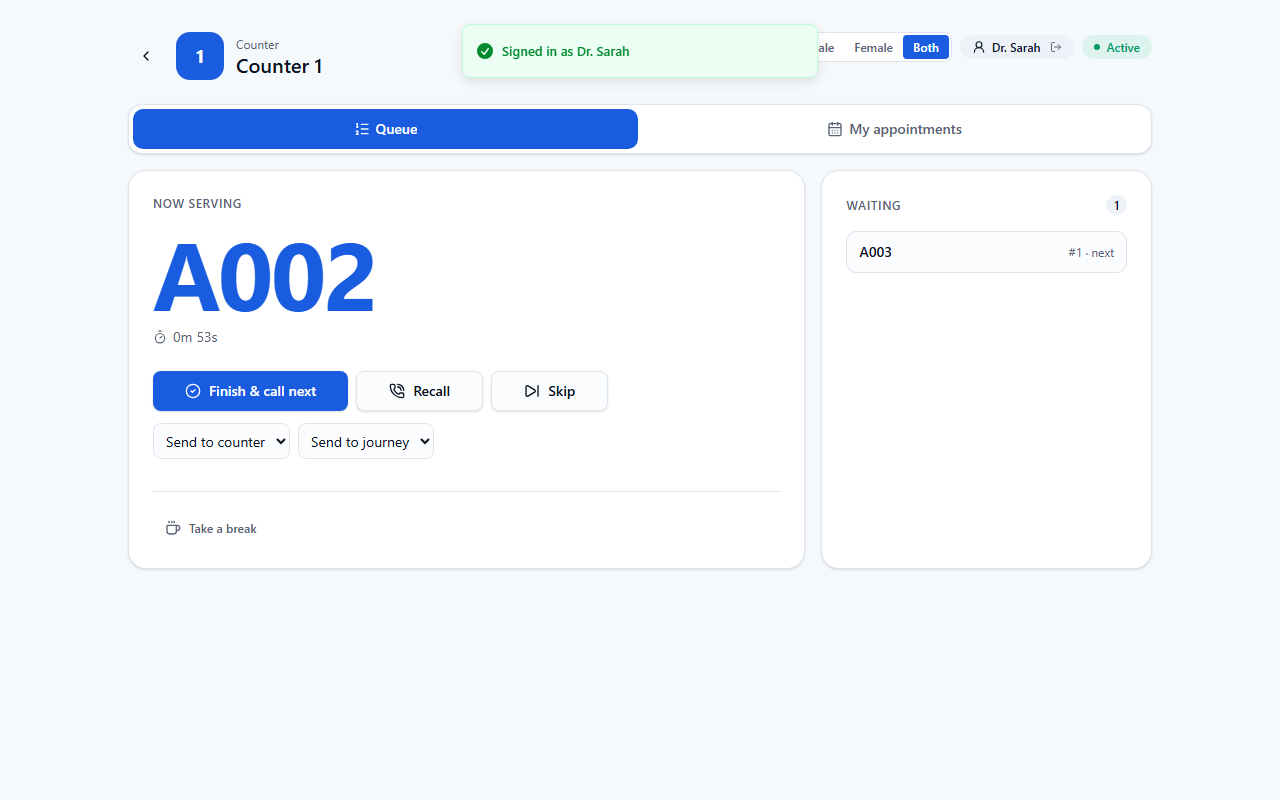
Each staff member opens their assigned counter URL (found on the Counters page). If multiple employees share a counter, they sign in with their personal login code and PIN. In the live demo, sign in to a counter with login code 101 and PIN 1234 (Dr. Sarah).
Call, finish and manage tokens
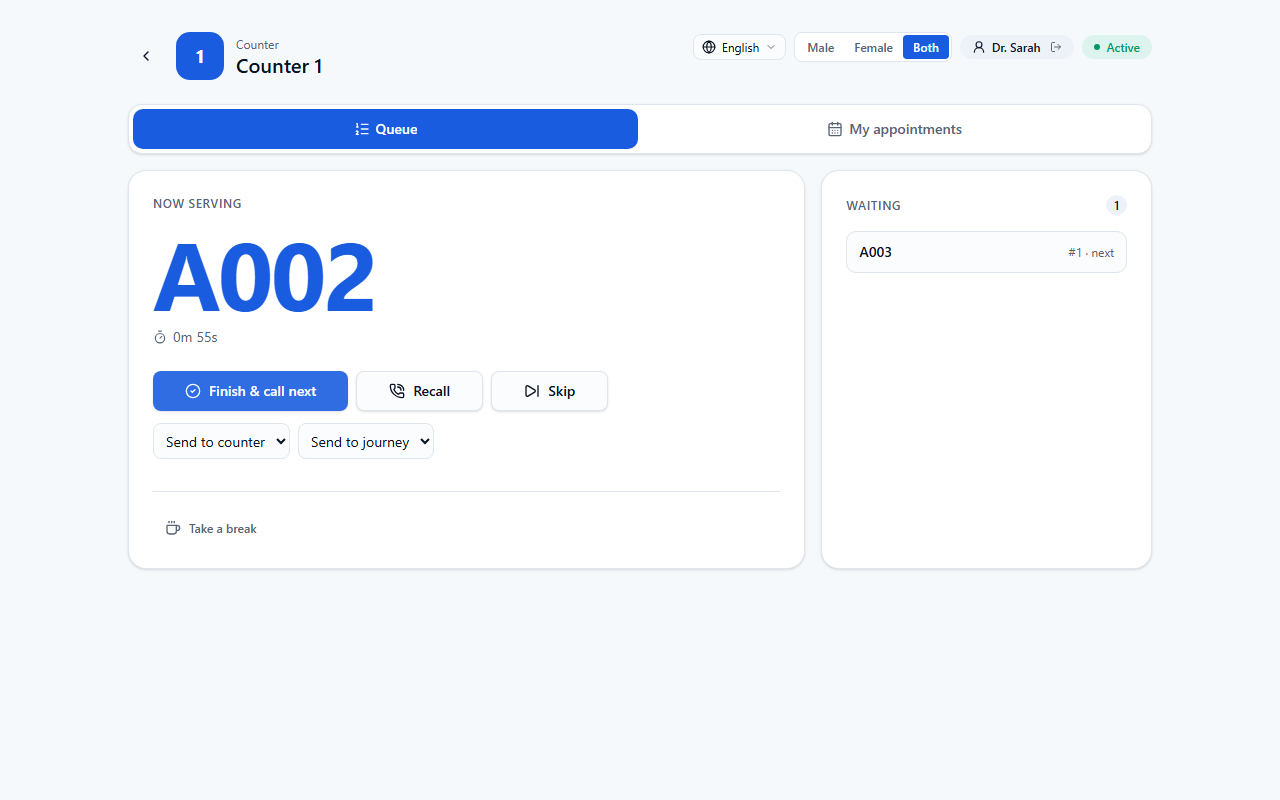
Tap Call Next to bring up the next customer. Use Finish & Call Next to complete the current visit and immediately call the next one, Recall to re-announce the same token, or Skip if the customer is absent.
Redirect a token to another counter or journey
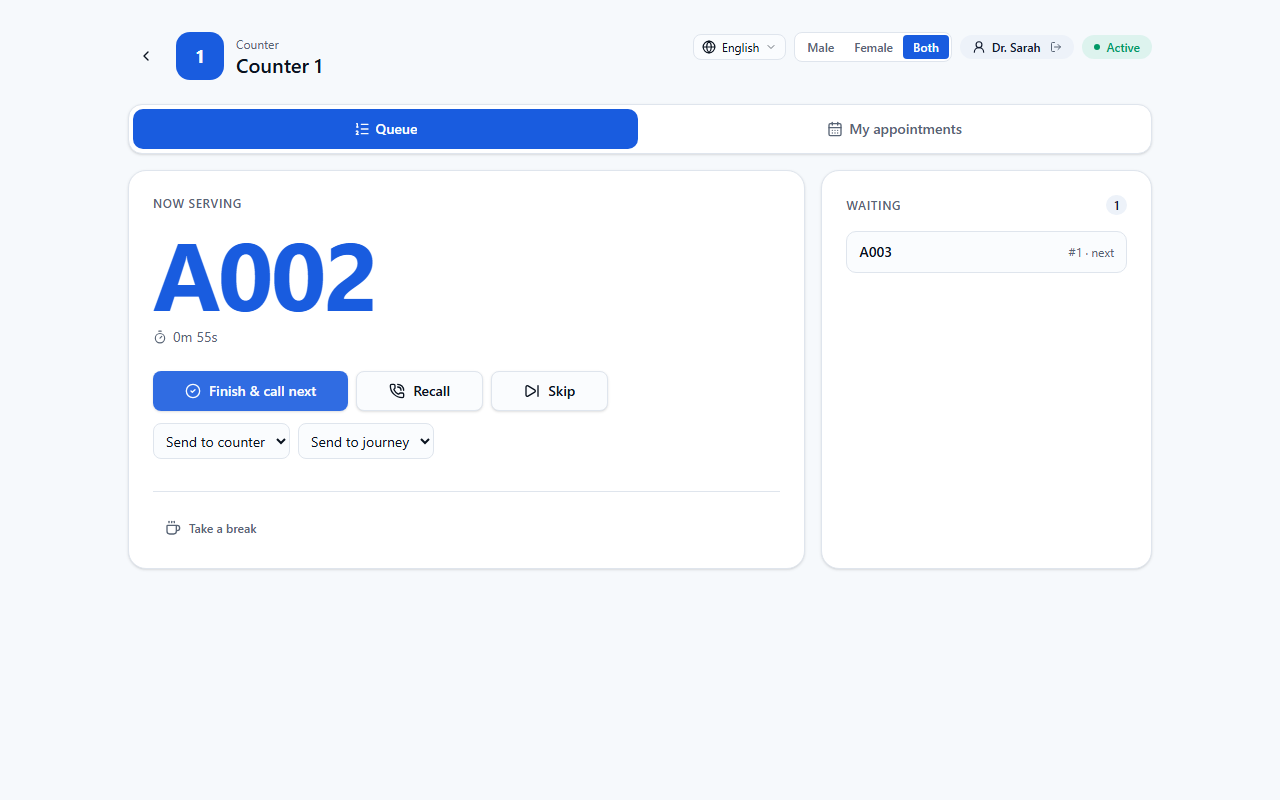
If a customer needs a different service, use the "Send to counter" or "Send to journey" dropdowns on the current token to move them to the right queue without making them rejoin.
4. Show the live display screen
Put up a waiting-room screen
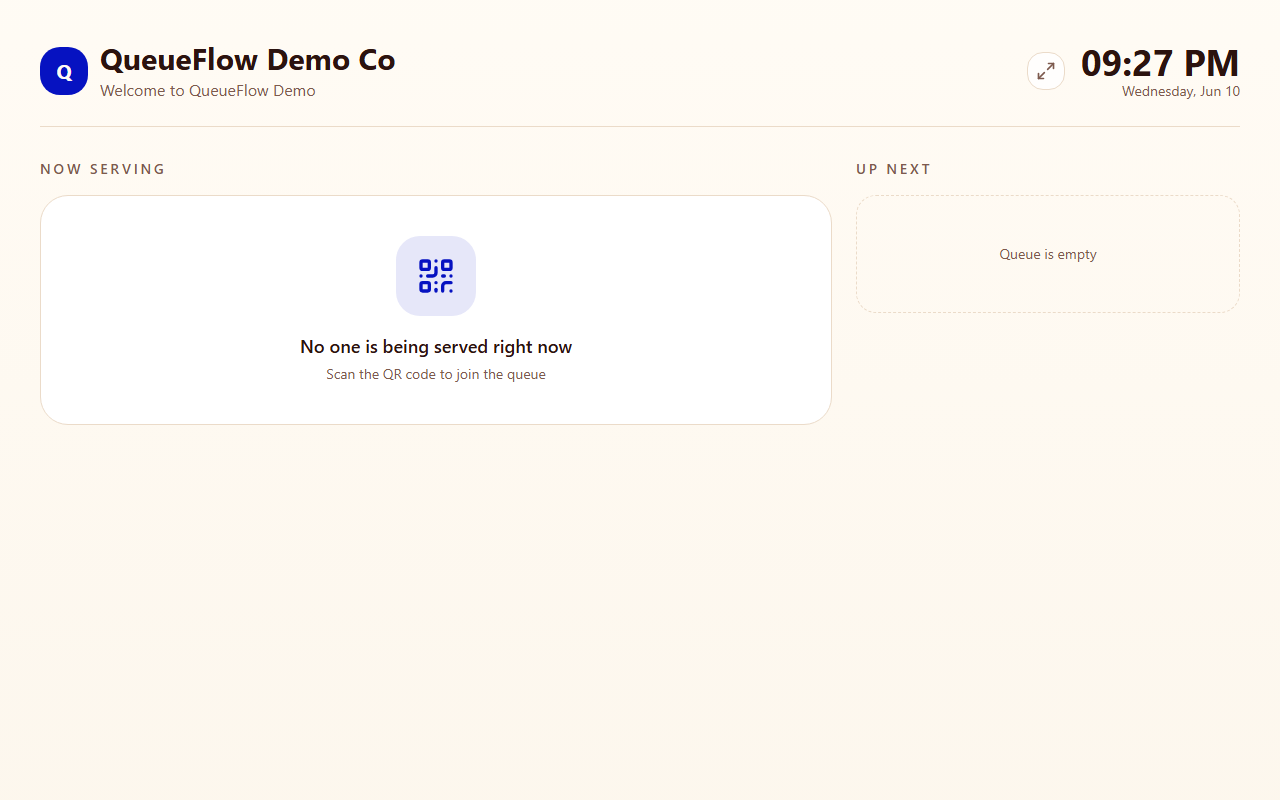
Open the Display URL for your branch on any TV, tablet or monitor in your waiting area. It automatically shows the current token, who's being served at each counter, and the upcoming queue — updating in real time.
5. Appointments & customer journeys (Pro/Premium)
Accept pre-booked appointments
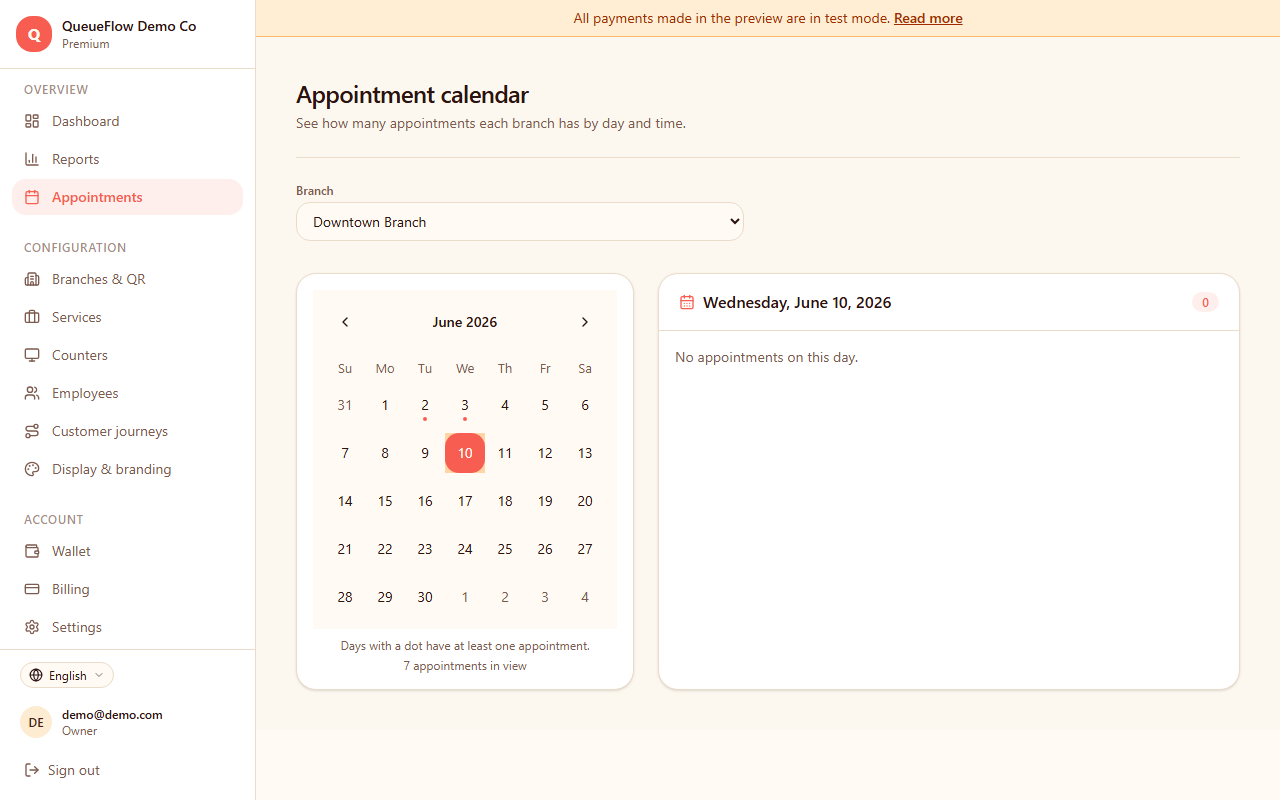
On Pro and Premium plans, customers can book a time slot in advance. When their appointment time arrives, staff get an alert at the counter and can call them directly with one tap.
Build multi-step customer journeys
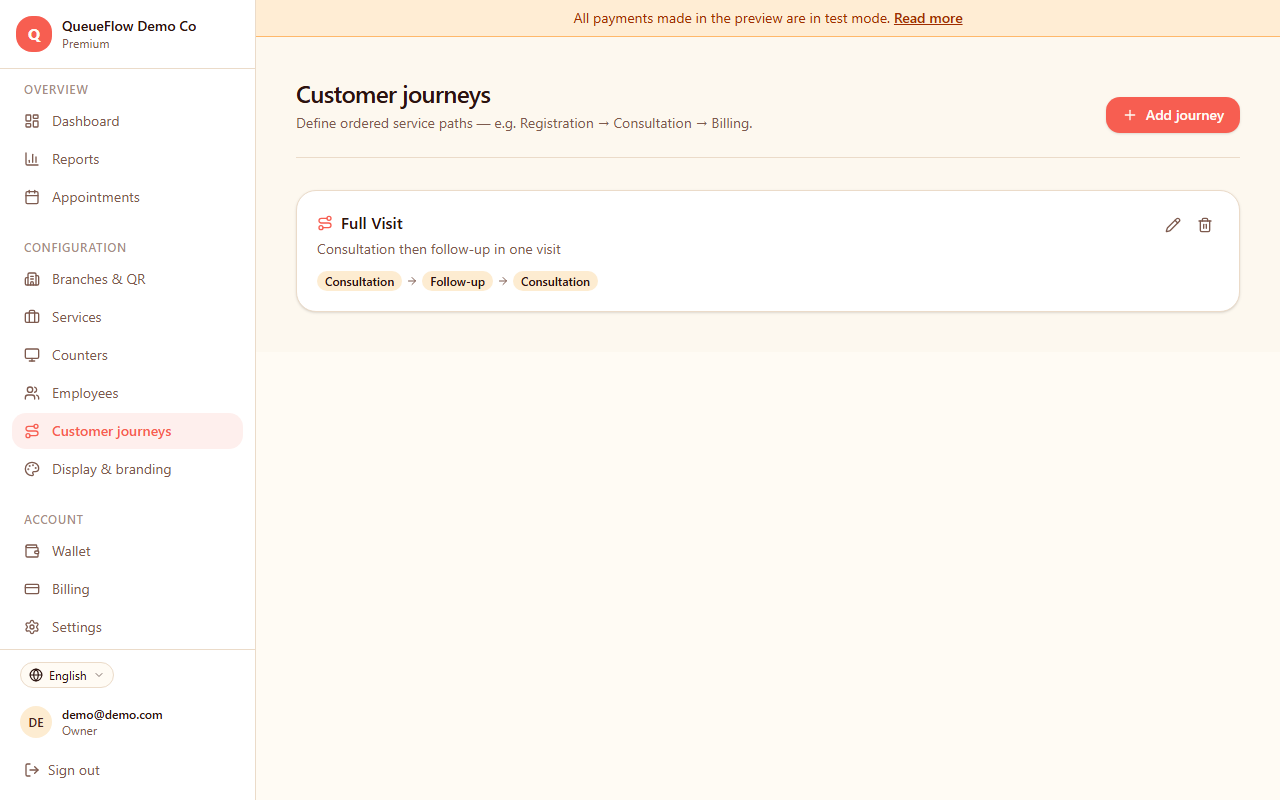
On Premium, create a Customer Journey that chains multiple services together (e.g. Registration → Consultation → Payment). A token automatically moves to the next step's queue after each stage is completed.
6. Branding, language & billing
Customize your branding
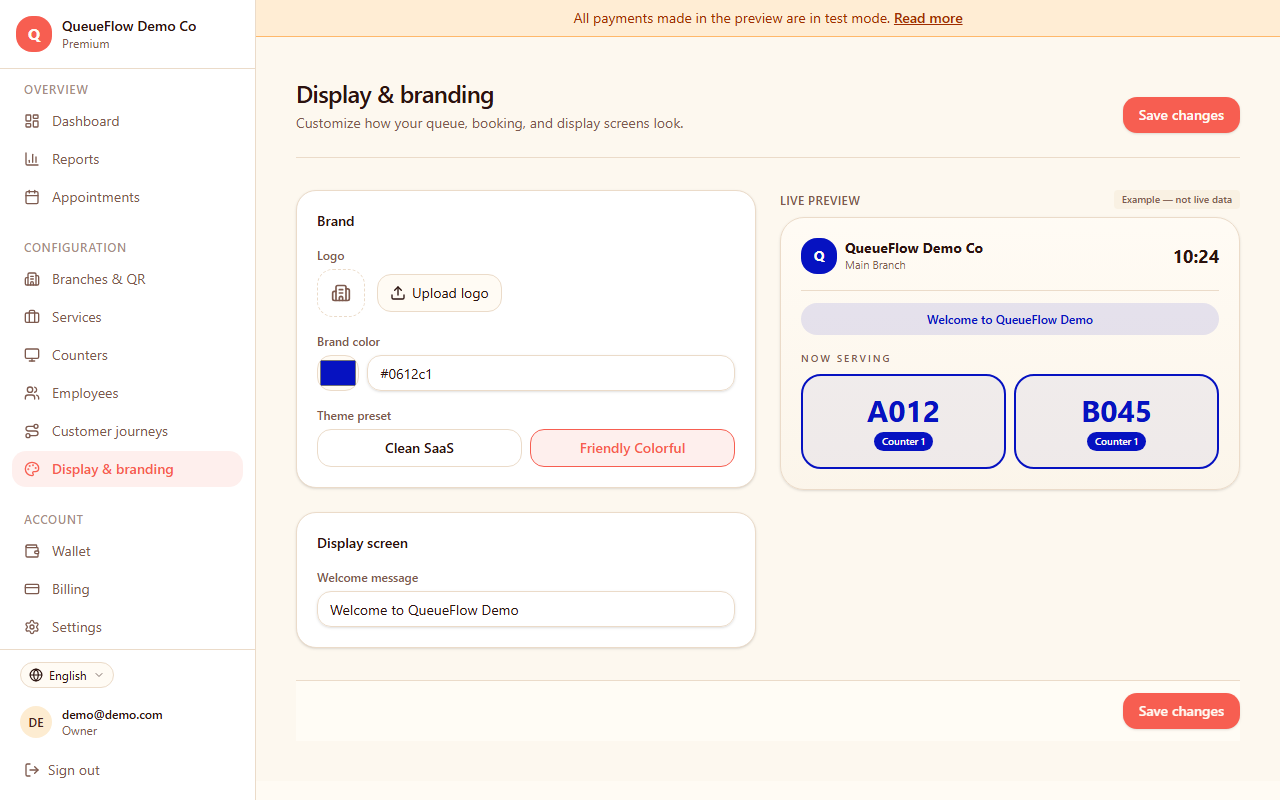
Upload your logo and set your brand colors under Branding — these appear on the customer queue page and the live display.
Choose a language
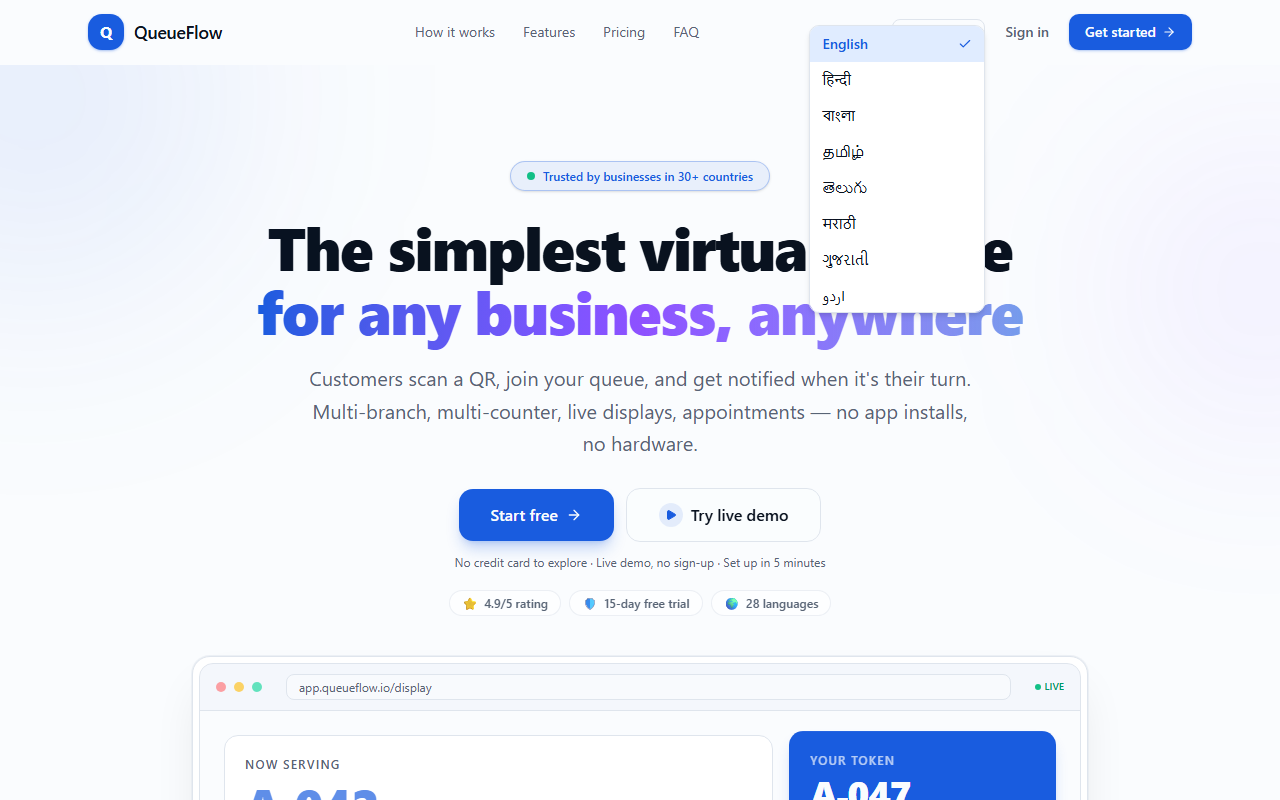
QueueFlow supports 28 languages for staff and customers. Use the language switcher in the top corner of any page, or set a default language for your branch under Settings.
Manage your subscription
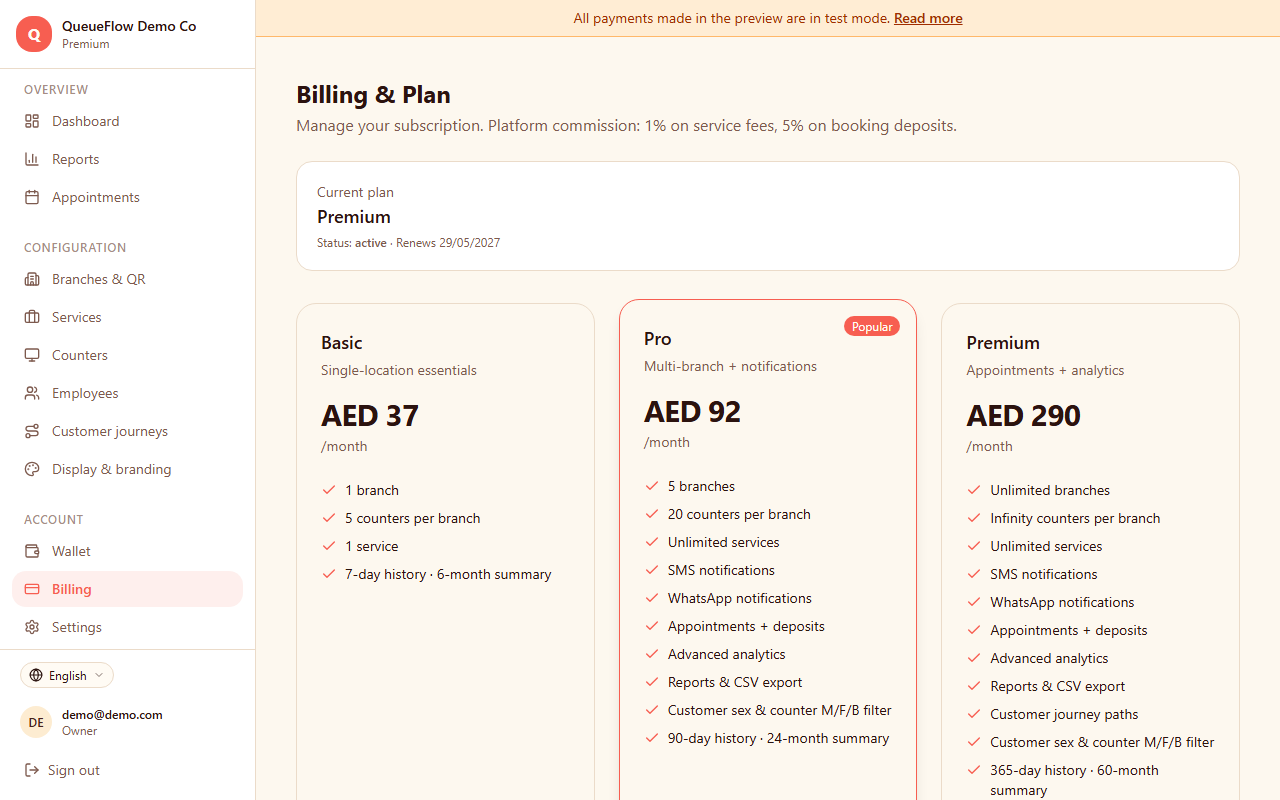
Visit Billing to view your plan, upgrade to Pro or Premium, or update payment details. All payments are processed securely by Paddle.
7. Frequently asked questions
Do my customers need to download an app?
No. Customers scan a QR code with their phone's built-in camera, which opens a web page in their browser. No app installation is required.
How many branches and counters can I add?
The free trial and Basic plan include 1 branch with up to 5 counters. The Pro plan supports up to 5 branches with 20 counters each, and Premium supports unlimited branches and counters.
Can I move a customer to a different counter or service?
Yes. From the counter screen, use the "Send to counter" or "Send to journey" options on the currently-serving token to redirect the customer without making them rejoin the queue.
What languages does QueueFlow support?
QueueFlow is available in 28 languages, including English, French, Spanish, Arabic, Hindi, Chinese, and more. Staff and customers can each choose their preferred language.
How do customers know when it's their turn?
Customers can watch their position update live on their own phone after joining, and the live display screen in your waiting area shows the current token and queue order.
Is there a free trial?
Yes, every new account includes a free 15-day trial of the Basic plan with no credit card required.
Still need help?
Contact our support team and we'll get back to you as soon as possible.
Back to home